_White_Background_square_1920px.png?width=256&height=96&name=FLEETWATCH%20Fleet%20Information%20Technology%20by%20S%26A%20Systems%2c%20Inc%20(06_28_2021)_White_Background_square_1920px.png)
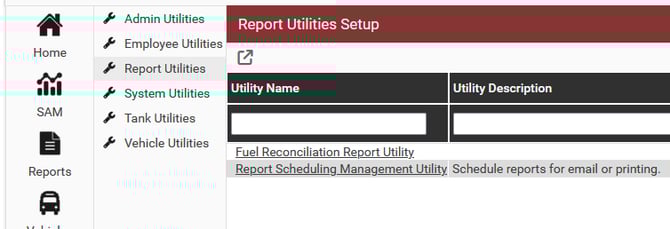
Navigate to the report scheduling management utility.
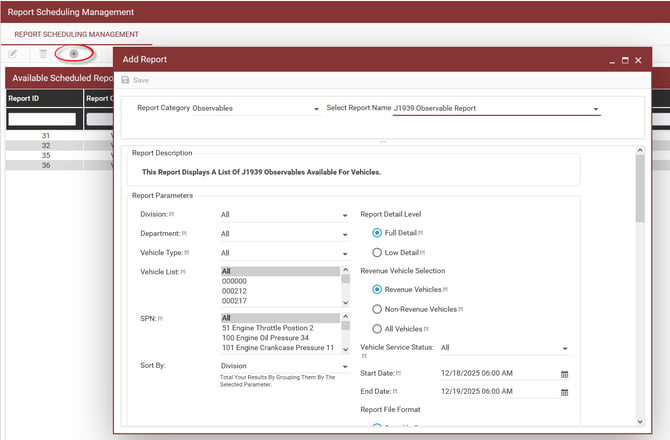
 Then click the add option, choose the report category, report name.
Choose Full or Low Detail (Full shows line-item detail).
Select a Revenue option.
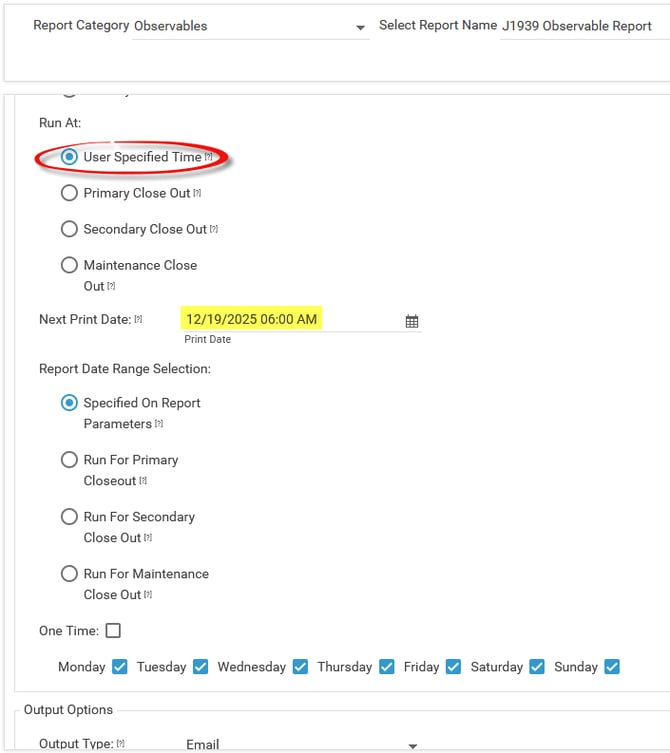
Choose a User Specified Time and adjust the Next Print (Email) Date if necessary.
Select the days of the week you'd like to receive the report.
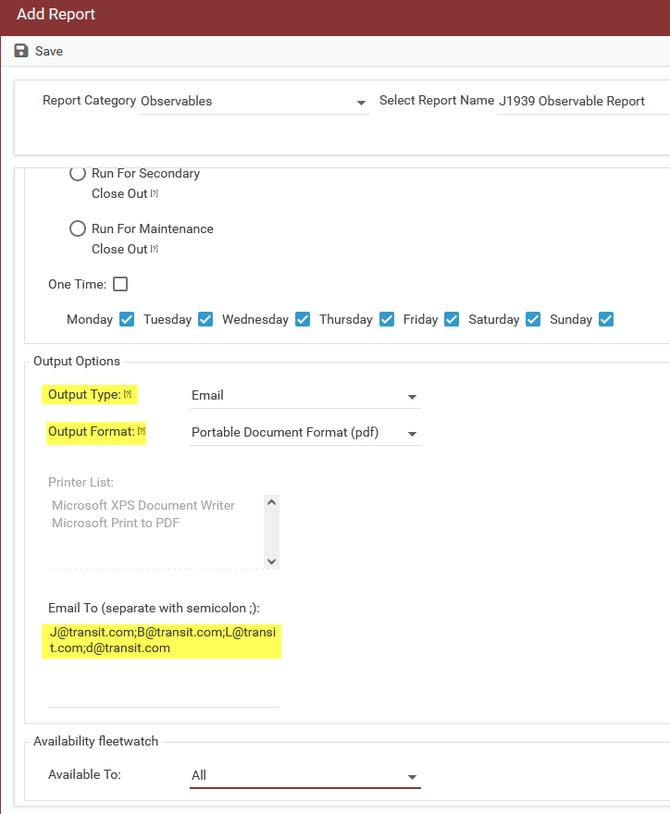
Choose the output type such as Email, the format such as PDF or CSV (Excel).
When entering the email addresses, use only a semi-colon between email addresses, no spaces, carriage returns, or new rows; one string like in the example.
Save changes!