
Overview
Fleetwatch can prompt for either an odometer reading or engine hours (EH) at the time of a fueling transaction. This lets you track usage by whichever measurement makes the most sense for each vehicle or piece of equipment.
Where to Find the Setting
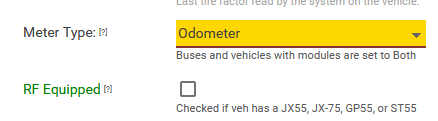
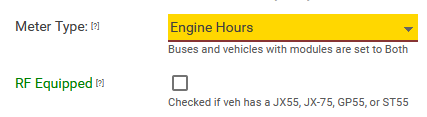
The prompt type is set in the Meter Type field, located in the Odometer Options section of the vehicle's Properties page.
Choosing a Priority Meter Type
When a vehicle needs both odometer and engine hours recorded through manual entry, the RIH can only prompt for one of them. Set the Meter Type to whichever reading is the priority for that vehicle:
- Odometer: the RIH prompts for odometer at the time of the transaction.
- Engine Hours: the RIH prompts for engine hours at the time of the transaction.
Choose the reading that matters most for that vehicle's maintenance and reporting, since that's what the driver or operator will be asked for at the pump.
Entering the Secondary Reading
The reading that isn't set as the priority must be entered separately through the Manual Transaction Entry utility in Fleetwatch.
- Open the Manual Transaction Entry utility.
- Enter the secondary reading (whichever was not set as the priority) for that vehicle.
About the "Both (Odom & EH)" Meter Type
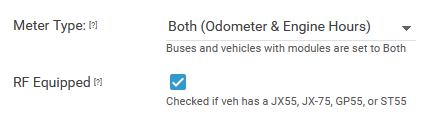
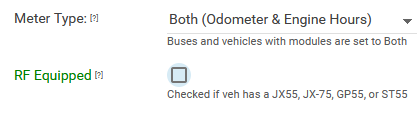
The Meter Type drop-down includes an option labeled Both (Odom & EH). This option is specific to the JX200 (and other RF modules) and should only be selected for vehicles equipped with a JX200. For all other vehicles, choose either the odometer or engine hours option as described above.
Correct setup for Fleetwatch model RF-Equipped Vehicles
Incorrect setup for any vehicle. Choose Odometer or Hours for vehicles not equipped with Fleetwatch modules.
Need Help?
If you're unsure which meter type to choose for a vehicle, contact our support team and we'll help you set it up.