_White_Background_square_1920px.png?width=256&height=96&name=FLEETWATCH%20Fleet%20Information%20Technology%20by%20S%26A%20Systems%2c%20Inc%20(06_28_2021)_White_Background_square_1920px.png)
Navigate to Your Data Tools webpage.
Getting started:
If this is a new Fleet, go to the Organization section to create a new Fleet for the vehicles you plan to add. An example for the use case is when you're adding multiple vehicles with the same year, make, and model. Skip this step if you're adding vehicles to an existing fleet.
Important tip: if the vehicles are not part the agency's owned fleet, such as third-party buses that will fuel at your locations, create a separate Division or Department for those vehicles.
If available, open Setup and select Vehicle Types to confirm that the appropriate vehicle type exists. At this stage, an approximate match is acceptable.
Next, click Vehicle Templates, where you can either add a new template or edit an existing template to meet your requirements.
Once you're set with the organization and setup options, you're ready to add new vehicles.
Adding the new vehicles:
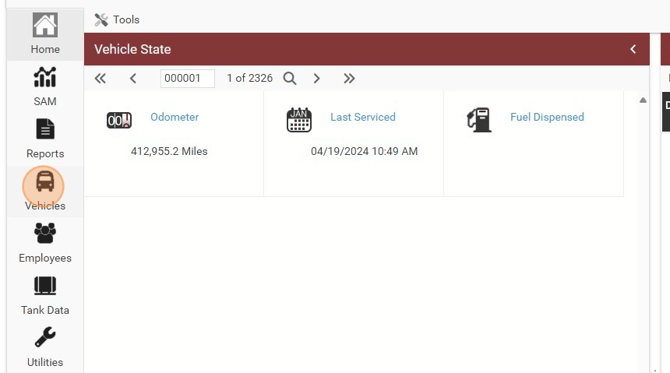
Click the Vehicles Option on the left
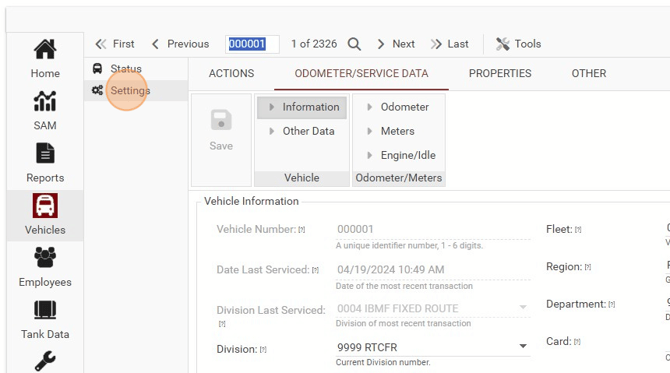
Click "Settings"
Click "ACTIONS"
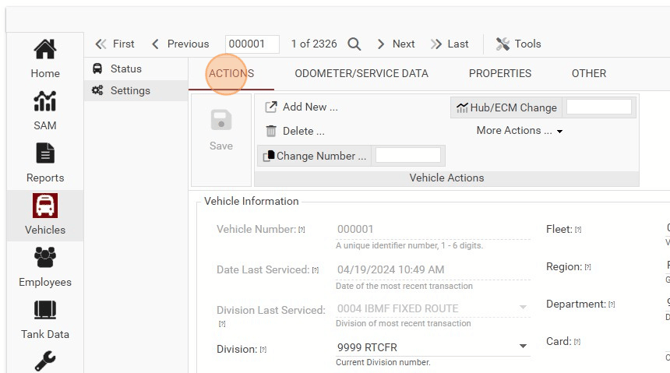
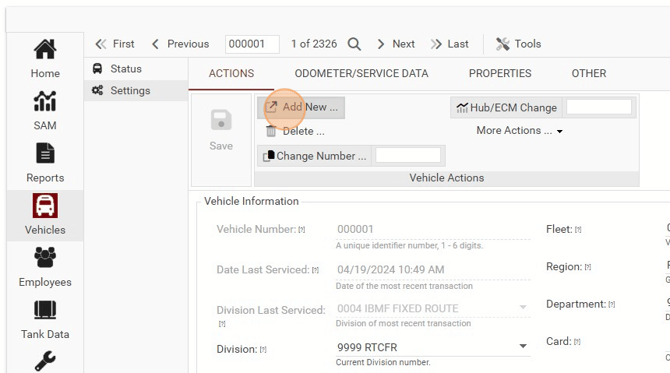
Click "Add New ..."
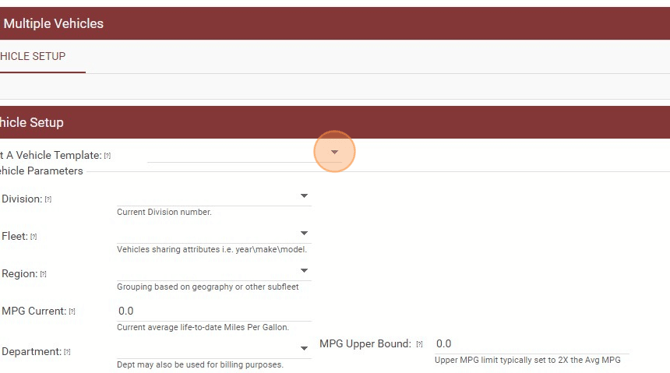
Select a Vehicle Template
Select the Division
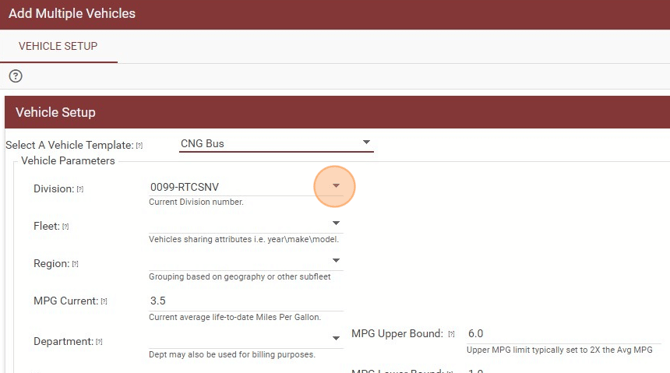
Fill out the information such as Year, Make, Model.
Ensure MPG settings are valid for the vehicle.
Ensure the fuel and fluids are set for the vehicle
Set Your Vehicle Number
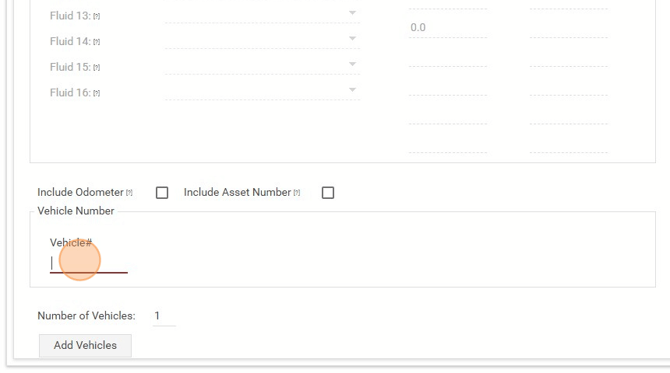
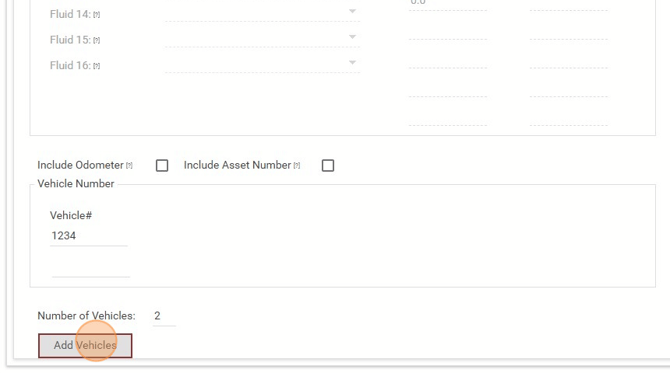
Select the Include Odometer option if you would like to add an odometer when adding a vehicle.
Choose the Add Vehicles button to add the vehicle(s).
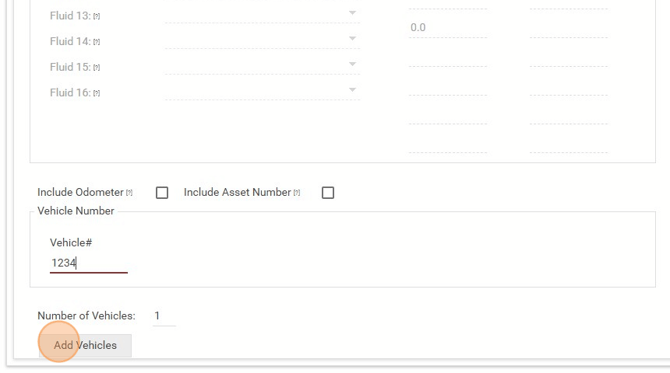
Select Add Vehicle one more time to Complete. It will always show one more vehicle than is going to be added, but go ahead and click Add Vehicles.